Screen 1
Home and connection status
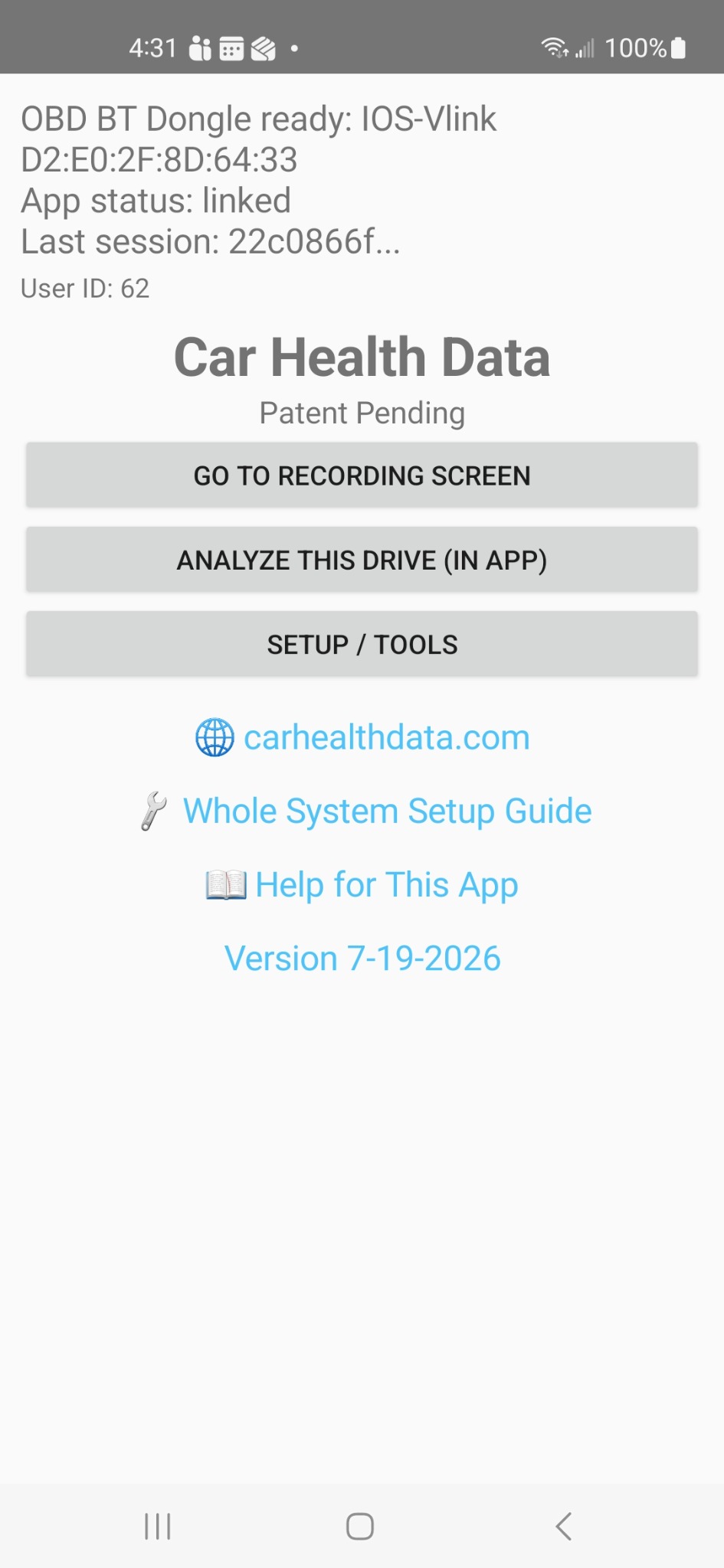
Confirm that the OBD-II dongle is ready and that the app is linked to your account. From here you can open the recording screen, analyze the latest drive, or enter Setup / Tools.
The Android app connects to a compatible Bluetooth OBD-II adapter, collects vehicle operating data, and securely sends each recording to your Car Health Data account. This page explains the complete setup and recording process.
These three screens cover the normal workflow: confirm the app is ready, connect and link it in Setup / Tools, then record and review live vehicle data.
Confirm that the OBD-II dongle is ready and that the app is linked to your account. From here you can open the recording screen, analyze the latest drive, or enter Setup / Tools.
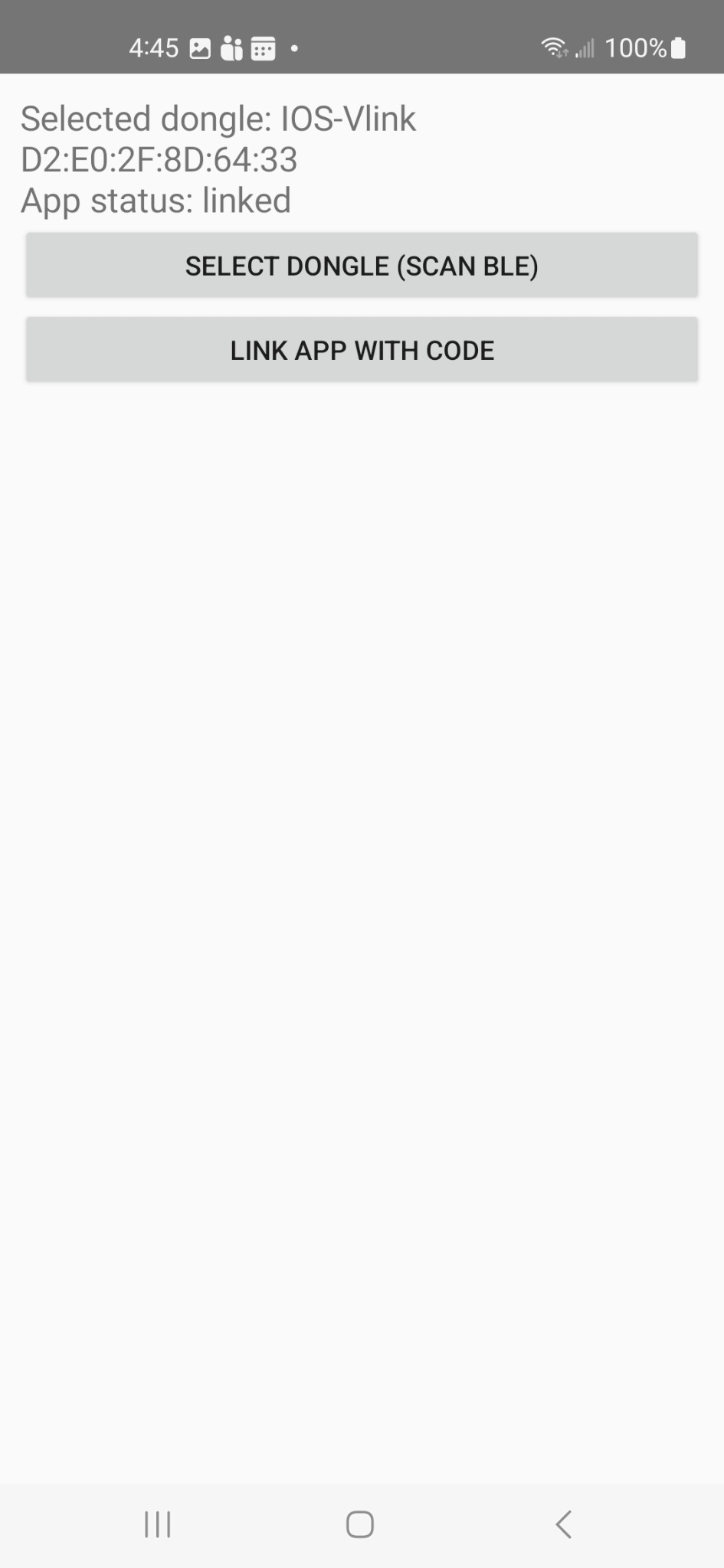
Use this screen to scan for and select the Bluetooth Low Energy OBD-II adapter. The same area also lets you link the app to your Car Health Data account with a temporary code from the website.
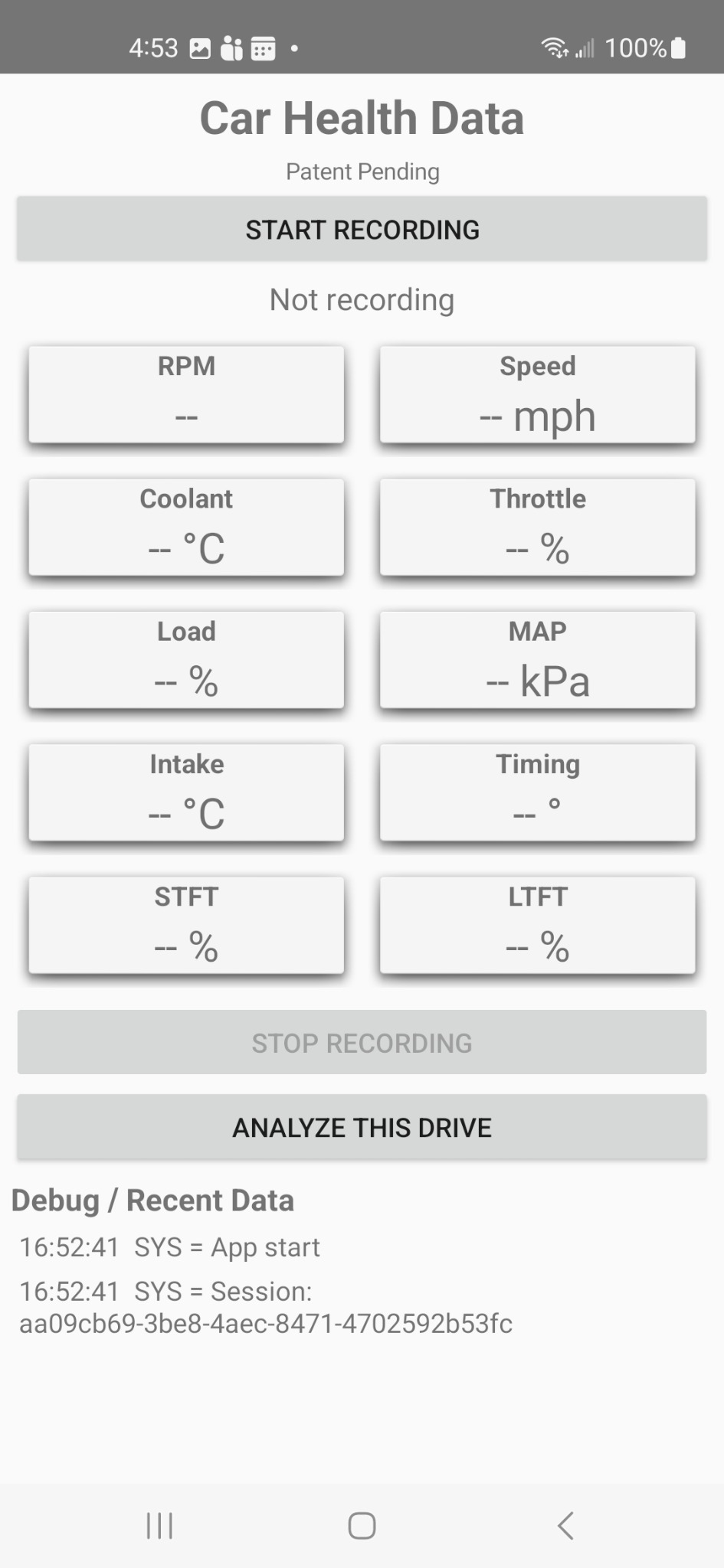
Tap Start Recording while safely parked. During the session, supported values appear in the live-data panels. After the drive, tap Stop Recording, then use Analyze This Drive when analysis is available for your account.
Screen appearance and available readings may vary slightly by Android version, vehicle, adapter, and app release.
You will need a few items ready before the app can collect vehicle data.
Use an Android phone with Bluetooth and an active internet connection. The internet connection is needed to upload recorded data to your account.
Use a Bluetooth Low Energy OBD-II adapter known to work with your vehicle and Android phone. The Vgate iCar Pro BLE adapter is a recommended option.
Most passenger vehicles sold in the United States from model year 1996 onward include an OBD-II diagnostic connector, usually beneath the dashboard near the steering column.
Create an account on the Car Health Data website before linking the app. The account ensures that recordings are assigned to the correct user.
Linking identifies which Car Health Data account should receive the recordings sent by the app.
Open the Car Health Data website in a browser and sign in to your account.
Open the account or app-linking section of the website and generate a temporary linking code.
From the app home screen, tap Setup or Setup / Tools, then open the account-linking screen.
Enter the temporary linking code exactly as shown on the website, then tap the button to link the app.
The app should report that the account was linked successfully. You normally need to complete this process only once unless the app is reinstalled, its data is cleared, or you intentionally link it to another account.
The adapter allows the phone to communicate with the vehicle's onboard diagnostic system.
The connector is usually under the dashboard on the driver's side. It is a 16-pin, roughly trapezoidal socket.
With the vehicle parked, firmly plug the adapter into the OBD-II connector. Most adapters receive power immediately.
Start the engine for a live driving session. For some setup tests, placing the ignition in the ON position may be enough, although engine-related readings will be limited until the engine runs.
When requested, allow Bluetooth and nearby-device permissions. Depending on the Android version, location permission may also be required for Bluetooth scanning.
In the app, open the dongle or Bluetooth scan screen and begin a
scan. Compatible devices may appear with names such as
IOS-Vlink, VLINK, VGATE,
or another manufacturer name.
Tap the adapter name and wait for the app to report that the connection is ready. If several nearby Bluetooth devices appear, verify the adapter's advertised name in its instructions or turn other nearby Bluetooth accessories off temporarily.
Each time you begin recording, the app creates a new session so the readings from one drive remain separate from another.
Make sure the app is linked to your account before recording. Unlinked data may not be assigned correctly.
Confirm that the vehicle is running and that the app reports a successful Bluetooth connection.
The app creates a unique session and begins requesting supported readings from the vehicle.
Leave the phone and adapter undisturbed while the app records. The app may collect values such as:
Stop the session after the drive is complete. Allow a few moments for any remaining readings to be uploaded before unplugging the adapter or closing the app.
Sign in to the Car Health Data website to browse the recorded raw data, select the session, and request an analytical report when that feature is available for your account.
The app collects and uploads vehicle data, displays selected live readings, and can request an analysis of the most recent drive when that feature is available for your account. The website also provides session browsing and account tools.
The home screen provides access to recording controls, connection status, setup tools, and help.
Use this area to link your account, scan for the Bluetooth adapter, review connection settings, and access setup assistance.
The connection message shows whether the app has discovered and connected to the selected OBD-II adapter.
During recording, the app may show selected live values or status information. Not every supported reading needs to be displayed on the phone to be uploaded.
Each recording has a unique session identifier. It lets the website group all readings from the same drive and can help support locate a specific recording.
When location permission is enabled, the app may include latitude and longitude with recorded data. Location access can also be required by some Android versions to perform Bluetooth scanning.
Raw data consists of the measurements returned by the vehicle and recorded with timestamps. These values remain available for review and provide the basis for analytical reports.
The analysis reviews a complete session and presents notable patterns in readable language. It is an informational aid and not a substitute for professional diagnosis or inspection.
The following steps resolve many common connection and recording problems.
The app requests measurements in sequence, and the adapter or vehicle may respond slowly. A short drive can therefore contain fewer readings than expected. For a useful test:
Some Android versions require location permission before an app can scan for nearby Bluetooth devices. Car Health Data may also record location with session data when that feature is enabled. Review the Privacy Policy for more information.
Reinstalling the app or clearing its stored data removes the saved account token. Generate a new linking code on the website and repeat the account-linking process.
Connect the adapter and start recording while safely parked. This can capture startup and warm-up behavior.
A session lasting several minutes usually provides more useful information than a very short test.
When safe and appropriate, allow the recording to include idle, normal acceleration, steady driving, and deceleration.
Keep notes about warning lights, noises, poor running, weather, or other symptoms. These details may help when reviewing the data or discussing it with a mechanic.
Email support with a description of the problem, your phone model, Android version, OBD-II adapter brand, vehicle year and model, and the session ID if one is available.
Email Android Support